

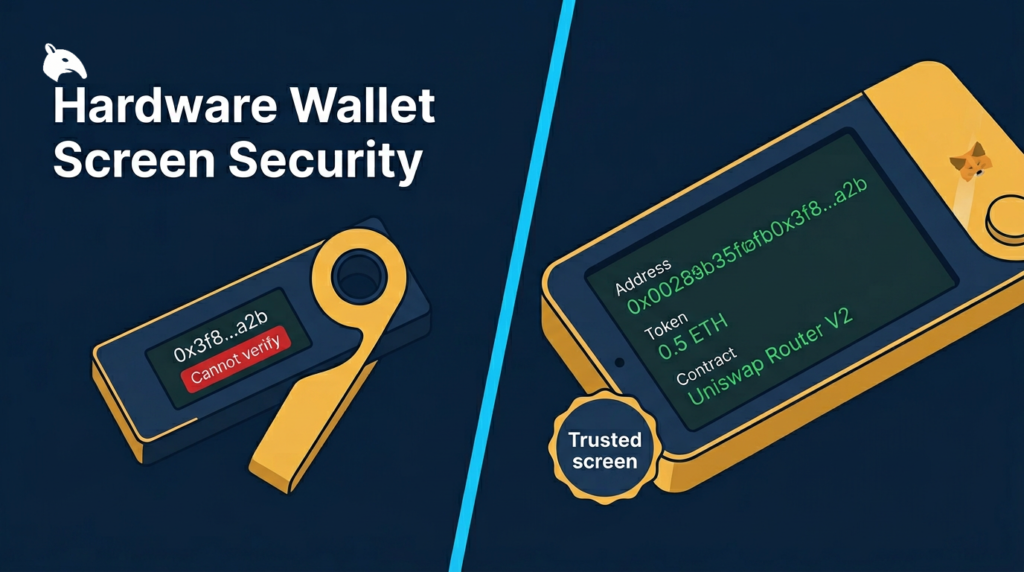
Hardware wallet screen security is not about aesthetics. It is the most critical security boundary between you and a malicious transaction. When you sign a transaction on a hardware wallet, the only way to verify what you are actually authorizing is to read the details displayed on the device’s own screen, not on the computer or phone connected to it. A compromised computer can show you anything. The hardware wallet screen cannot be manipulated remotely. If the transaction details on the wallet screen look wrong, the correct action is to refuse. If you cannot read the details at all, you are signing blind.
In practical terms, that means screen quality affects security, not just comfort. A larger, clearer screen makes it easier to verify destination addresses, token amounts, approval limits, and contract names before you confirm. A small screen can still work for simple transfers, but it leaves far less margin for error when the transaction gets more complex.
This content is for educational purposes only and should not be considered financial or investment advice.
Key Takeaways
- The hardware wallet screen is the only trusted display in the signing workflow. Computer and phone screens can be manipulated by malware.
- Small screens truncate destination addresses and contract details, making verification practically impossible.
- Blind signing is when you confirm a transaction on a hardware wallet without readable details on the device screen.
- DeFi interactions require a screen large enough to show contract names, token amounts, and approval limits.
- Larger, clearer screens are better suited to human-readable verification than tiny screens that force truncation and rapid scrolling.
Why the Hardware Wallet Screen Is the Trust Boundary
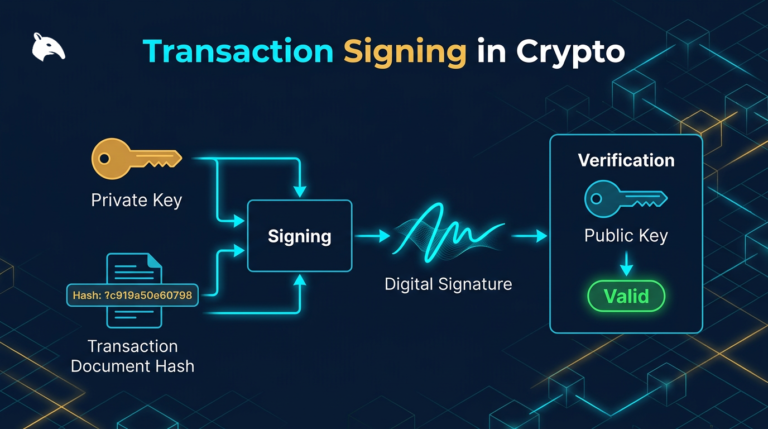
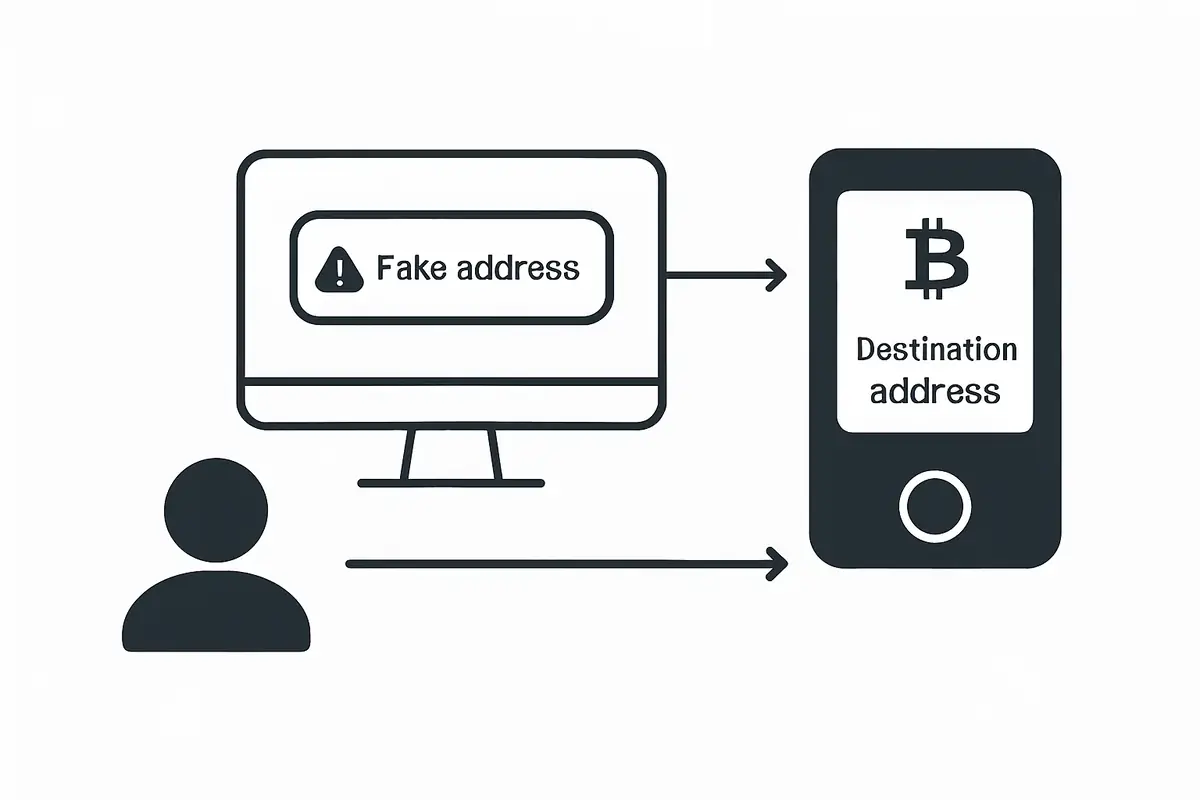
Hardware wallets protect private keys by isolating them in a tamper-resistant chip. But key isolation alone does not prevent theft if a malicious transaction can get the device to sign it with your confirmation. The scenario is this: malware on your computer intercepts a legitimate transaction and replaces the recipient address with the attacker’s address. Your computer screen shows the correct address. But the hardware wallet signs what it received, not what you saw on your computer.
For a closely related follow-up, see Exchange Withdrawals Will Pause Again.
The hardware wallet screen displays what the device actually received and will sign. This is the verification point. If you read the address on the device screen and it matches your intended recipient, you can confirm with confidence. If you skip this check (or if the screen is too small to show the full address), the malware attack succeeds even with a hardware wallet in use.
This means the security value of a hardware wallet is directly proportional to the quality of information on its screen and your habit of reading it before confirming.
The Problem with Small Screens
A Bitcoin or Ethereum address is 34 to 42 characters long. A full contract call for a DeFi interaction may include the contract address, the function name, the token amount, the approval limit, the recipient, and other parameters. None of this fits on a small screen in a single view.
Ledger Nano S Plus has a screen that is about 128×64 pixels. A Nano S Plus can display a destination address in multiple pages: you scroll through the characters. Most users do not scroll through the full address. The habit of confirming without reading is so common that it has become a known security risk. Firmware and companion app updates have added warnings to try to change user behavior, but the root problem is the screen’s inability to display the full transaction at once.
Trezor Model T improved this with a 240×240 touchscreen, which allows more information per screen. But for complex DeFi transactions, even this is limiting. Smart contract interactions involve many parameters, and small screens can only approximate what you are signing.
What “Blind Signing” Means and Why It Is Dangerous
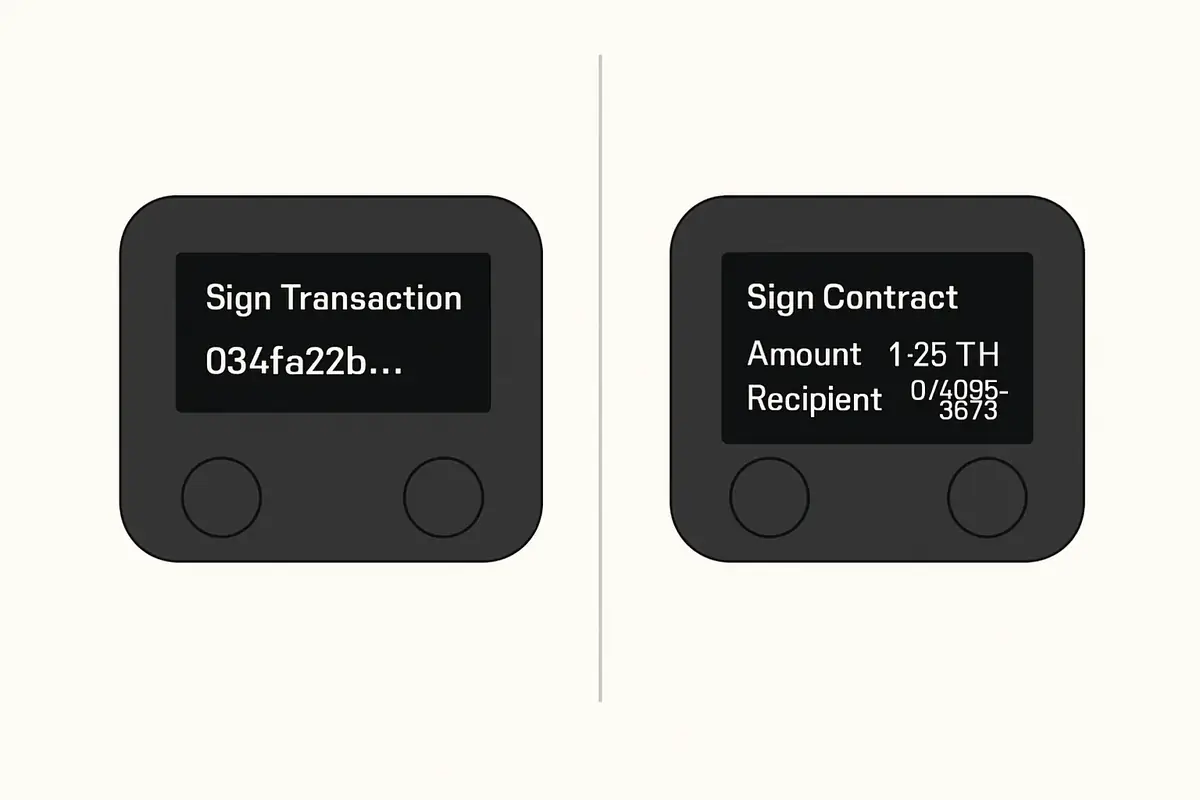
Blind signing is the practice of confirming a transaction on a hardware wallet without a human-readable display of what the transaction contains. This typically happens in two situations: the device screen is too small to show all relevant details, or the device does not support decoding the specific transaction type (common with complex DeFi calls).
For a closely related follow-up, see Verify Hardware Wallet Before First Use: Essential Checks.
For a closely related follow-up, see How to Choose a Crypto Wallet: A Practical Security Framework.
When a Ledger device encounters a smart contract interaction it cannot decode, it sometimes shows a warning like “Unverified contract” and displays a raw hex data blob. A user who confirms this is blind signing. They are approving an operation whose content they cannot verify on the trusted screen. If that operation is a malicious approval to a drainer contract, the confirmation is permanent.
The best hardware wallets actively decode supported contract interactions and display them in plain language. When they cannot, refusing to sign is the correct security action. Devices with larger screens and more comprehensive DeFi transaction parsing capabilities (like Keystone 3 Pro) reduce the blind signing problem significantly.
One operator insight is that blind signing rarely feels like an emergency when it happens. It feels like a minor inconvenience users are tempted to click through. That is exactly why it is dangerous. If the device cannot tell you what you are approving in a readable way, the safest default is to stop rather than improvise.
Screen Comparison: Current Hardware Wallets
- Ledger Nano S Plus: 128×64 pixel monochrome display. Very small. Address must be scrolled through in segments. Adequate for simple BTC/ETH transfers if you scroll. Inadequate for DeFi verification.
- Ledger Nano X: Same 128×64 monochrome display as the Nano S Plus. Larger device, same screen limitation.
- Ledger Stax: 3.7-inch e-ink curved touchscreen. Large enough to display meaningful transaction details. Significantly better for readable verification. The most capable Ledger screen.
- Trezor Model T: 2.8-inch 240×240 color touchscreen. Better than Nano S Plus but still limited for complex DeFi calls. Supports clear address display for most standard transactions.
- Keystone 3 Pro: 4-inch color touchscreen (480×800). Large enough to display full transaction details for most DeFi protocols. Integrates with MetaMask and displays human-readable approval details via third-party wallet parsers.
- SafePal S1 Pro: 1.3-inch screen with physical buttons. Too small for meaningful DeFi transaction verification. Adequate for simple transfers where amount and address can be confirmed across multiple pages.
Practical Usage: Verify on the Device Screen
Having a large screen is necessary but not sufficient. You also need to build the habit of using it. The correct signing workflow is:
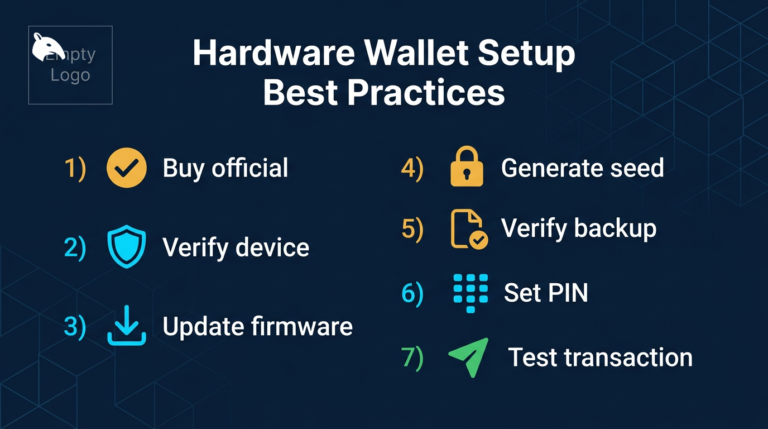
For a closely related follow-up, see Hardware Wallet Setup: How to Do It Safely from the Start.
- Before confirming any transaction, read what is displayed on the hardware wallet screen, not the companion app screen.
- Verify the first and last 8 characters of the destination address at minimum. Full address verification is best practice.
- Verify the token amount being transferred. Malware can change amounts as well as addresses.
- For DeFi approvals: read the contract name, the approval amount, and the approved contract address. Reject unlimited approvals to unknown contracts.
- If the device shows a blind signing warning or displays raw hex data: refuse. Do not confirm transactions you cannot verify.
This workflow adds 15 to 30 seconds to each signing event. That time is the most meaningful security step in the entire workflow. Rushing through confirmation is the specific behavior that malware and drainer attacks rely on. A useful routine is to treat every approval above your normal spending size as a pause point: stop, re-read the device screen, and confirm that the contract, amount, and destination still make sense before you continue.
A concrete example: if you are sending bitcoin from long-term storage, a small screen can still be workable if you patiently verify the address. If you are approving tokens to a DeFi protocol, the same screen may not show enough context to tell whether you are granting a limited approval to a known contract or an unlimited approval to a drainer. The right screen depends on the job you expect the wallet to perform.
Address Verification and Clipboard Malware
Clipboard hijacking malware monitors the clipboard for cryptocurrency addresses and substitutes the attacker’s address when you paste. This is one of the most common and effective delivery mechanisms for address substitution attacks. If you copy an address from a website, paste it into a transaction form, and it is silently replaced by malware, the transaction form shows the correct address (the malware’s version) but the hardware wallet screen will show the attacker’s address, because the device received the substituted version.
This is exactly why verifying on the hardware wallet screen matters. The device is the ground truth. The computer is not. A full address verification habit on the device screen is the only reliable defense against clipboard substitution. For more on this specific attack category, see Clipboard Hijacking Malware Explained.
Risks and Common Mistakes
The most common mistake is using a hardware wallet as a simple approval gate without reading the screen. This negates the primary security benefit. If your habit is to plug in the device and press confirm whenever the computer asks you to, you have reduced the hardware wallet’s role to “physical button press required” rather than “verified transaction signing.”
Another mistake is purchasing a hardware wallet with a very small screen and then using it primarily for DeFi interactions. Small-screen devices are appropriate for simple transfers where you can meaningfully verify amount and address. They are not appropriate as a primary signing device for complex DeFi interactions where the transaction details cannot be displayed in readable form.
A second operator insight is that users often overestimate how much scrolling they will actually do once signing becomes routine. A screen that is theoretically usable can still become practically unsafe if it encourages “looks close enough” behavior. Choose the screen quality that matches the complexity of the transactions you really expect to sign, not just the transactions you imagine using on day one.
For a direct comparison of how different device architectures handle this trade-off, see Ledger vs Keystone Security Architecture.
Frequently Asked Questions
Can the hardware wallet screen be hacked to show false information?
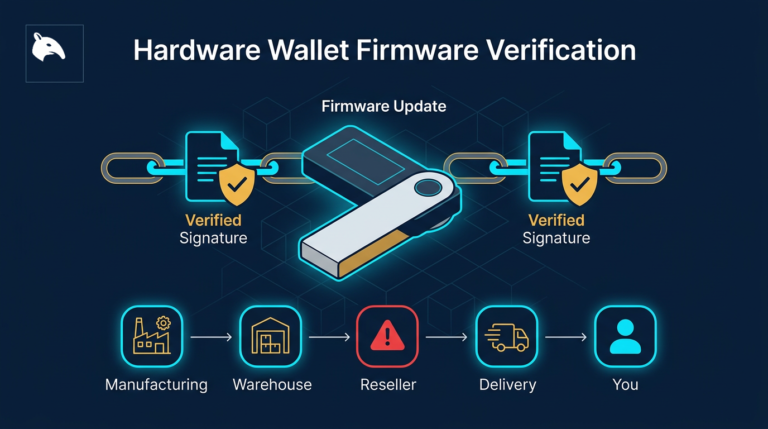
A remote attacker cannot manipulate what a properly functioning hardware wallet displays on its screen without a firmware-level compromise. The display is driven by the device’s own firmware, not by the connected computer. This is the core security guarantee. A compromised firmware via a supply chain attack or fraudulent update could theoretically manipulate the screen, which is why firmware verification matters.
Does screen size affect cold storage security for Bitcoin?
For simple Bitcoin transfers, a small screen is adequate if you scroll through and verify the full address. The screen size limitation is most critical for complex multi-parameter transactions. For long-term cold storage where you sign infrequently and each transaction is a simple send, a small screen is manageable with careful verification habits.
If you regularly interact with DeFi protocols or NFT platforms where transaction details are complex, a larger screen can provide meaningful security value. If you primarily hold Bitcoin and make infrequent simple transfers, the screen premium is less critical. If you are also weighing connection model rather than just screen size, compare it with cold storage vs air-gapped wallets.
What should I do if my hardware wallet cannot decode a transaction?
Do not confirm it. If the device shows raw hex data or a warning that the contract cannot be verified, the correct action is to refuse and investigate. Return to the originating dApp, verify it is a legitimate site you intended to use, and check with the project’s official community whether that transaction type is expected.